Data storage
Storage lets your flows remember things between runs. A flow can count messages per member, keep an XP total, remember which ticket belongs to which channel, or store a switch that turns an event on and off. Without storage, every run starts from nothing.
Stored data lives on your server's bot. You can browse it, change it and delete it in the dashboard, and your flows read and write it with storage steps.
Stored data lives inside your running bot. While your bot is stopped, the storage pages show "The bot must be running", and flows can't read or write data either.
How storage works
Before a flow can store anything, you declare a storage field. A field has a name, a type (a number, text, a user, a list and so on) and a scope. Flows then read and write that field by name.
Storage is split into separate pools that never mix:
- Server pool. The fields used by flows that are not inside a module. You manage them on the Server storage page.
- Module storage. Every module has its own fields. Only the flows in that module can use them. A module can't see the server pool or another module's data, and the other way round.
This keeps apps from the marketplace from reading each other's data, and it means a field name only has to be unique inside its own pool.
Scopes
The scope decides how many values a field holds.
| Scope | What it stores | Example |
|---|---|---|
| Per user | One value per Discord user. | XP, warnings, a coin balance |
| Whole server | A single value shared across the entire server. | An event on/off switch, a counter |
| By custom key | One value per key you choose, such as a message ID, a channel ID or any text. | Votes per suggestion, giveaway data |
When a step reads or writes a Per user field, you tell it which user. For a By custom key field you give it the key. A Whole server field needs neither.
Declare a storage field
You can create a field in three places:
- From the flow editor. In the action picker, scroll to the Storage section and click Create a new storage field.... The field is available right away, without leaving the editor.
- With guided setup. Remember something for each member creates a per-user field and adds the steps that read and change it. You pick whether it's a number, text, a choice or several things together.
- On the storage page. Open the Schema view, click Add field, fill it in and save.
Each field has these settings:
| Setting | What it does |
|---|---|
| Name | What you and your flows call the field. |
| ID | Generated from the name. It can't be changed later. |
| Type | What kind of value it holds. See Value types. |
| Scope | Per user, Whole server or By custom key. |
| Description | An optional note for you and your team. |
| Default value | What a flow gets back when nothing has been stored yet, for types that support one. |
The Schema view also holds two helpers for structured data:
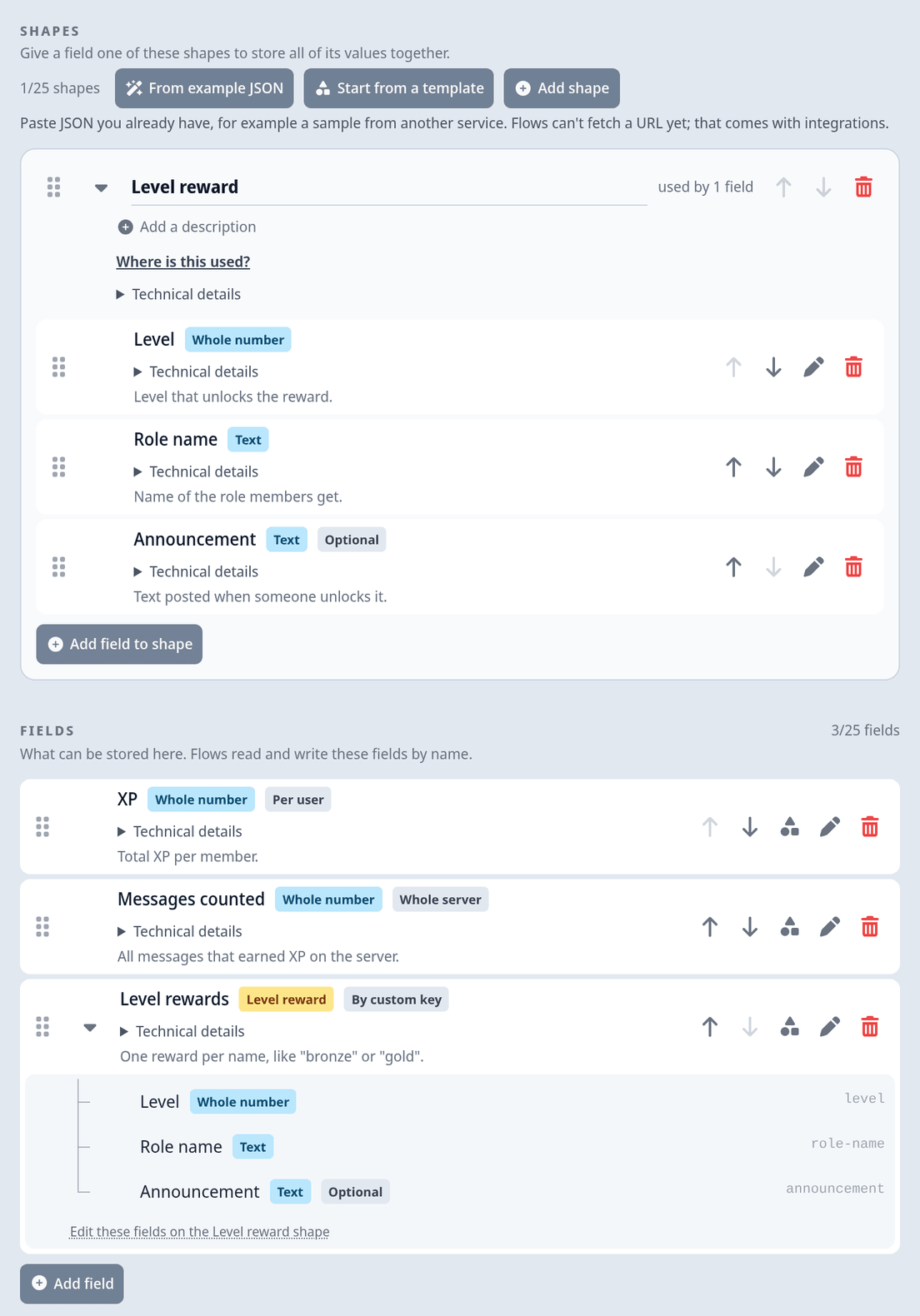
- Shapes let one field hold several named values at once, like a player profile with a level, a coin balance and a join date. A flow then reads
bet.amountinstead of unpacking one long text. - Choice lists are fixed sets of text values. A field typed with a choice list only accepts those values, which is handy for statuses like "open" and "closed".
Each pool can hold a limited number of fields, shapes and choice lists. The counter next to each section shows how many you've used.
Use storage in a flow
Flows read and write stored data with storage steps. In the action picker, the Storage section lists every field of the pool your flow belongs to. Expand a field to see what you can do with it, for example Read, Set, Increase, Add item to, Top entries of or Rank in.
Stored values only enter a flow through a step that reads them. When you pick a value for an input and choose a stored field from the Storage group, the editor adds a read step for you.
The storage steps you'll use most:
| Step | What it does | Works on |
|---|---|---|
| Read a stored value | Reads the value. It's empty if nothing has been stored yet. | Any field |
| Store a value | Writes a value, replacing what was there. | Any field |
| Increase a stored number | Adds to a number in one safe step. It can also subtract, which is what Decrease in the picker uses. | Number fields, number fields inside a shape |
| Delete a stored value | Removes the value for one user or key. | Any field |
| Is a value stored? | Checks whether there's a value, without reading it. | Any field |
| List storage entries | Returns the top entries sorted by value, for leaderboards. | Number fields |
| Get rank of a stored value | Returns someone's position, like "#42 on the leaderboard". | Number fields |
| Format leaderboard | Builds a ready-to-send leaderboard text from the top entries. | Number fields |
| Add item to stored list / Remove item from stored list | Changes a stored list in one safe step. | List fields |
| Set key in stored lookup table / Get key from stored lookup table | Works with one key of a stored lookup table. | Lookup table fields |
| Increment if (atomic) / Set stored value if (atomic) | Changes a value only if its current value meets a condition, like "spend coins only if the balance is high enough". | Any field |
| Check and set cooldown | Checks whether someone is on cooldown and starts a new one, in one step. | Any field |
| Clear storage field | Deletes every value of a field, or just one user's or key's. | Any field |
The full list, with every input and output, is in the Data storage action reference.
If two runs happen at the same time, "read the number, add one, store it again" can lose one of the updates. Increase a stored number in a single step instead. The same goes for lists and lookup tables: use Add item to and Set key in, which change the stored value in one go.
Example: an XP system
Members earn one XP per message, and /rank tells them where they stand.
- Create the field. On the Schema view, click Add field. Name it "XP", pick a whole number type, set Scope to Per user and Default value to
0. Save. - Count messages. Create a flow with the Message created trigger. Turn on ignoring bots in the trigger settings, so bot messages don't earn XP. Add Increase a stored number, pick the field "XP", use the message author as the user and
1as the amount. - Show the rank. Create a second flow with a slash command trigger named
rank. Add Read a stored value for "XP" with the command user, then Get rank of a stored value for the same user, and reply with both values. - Test and activate. Use Test run on both flows, then switch them to Active and save.
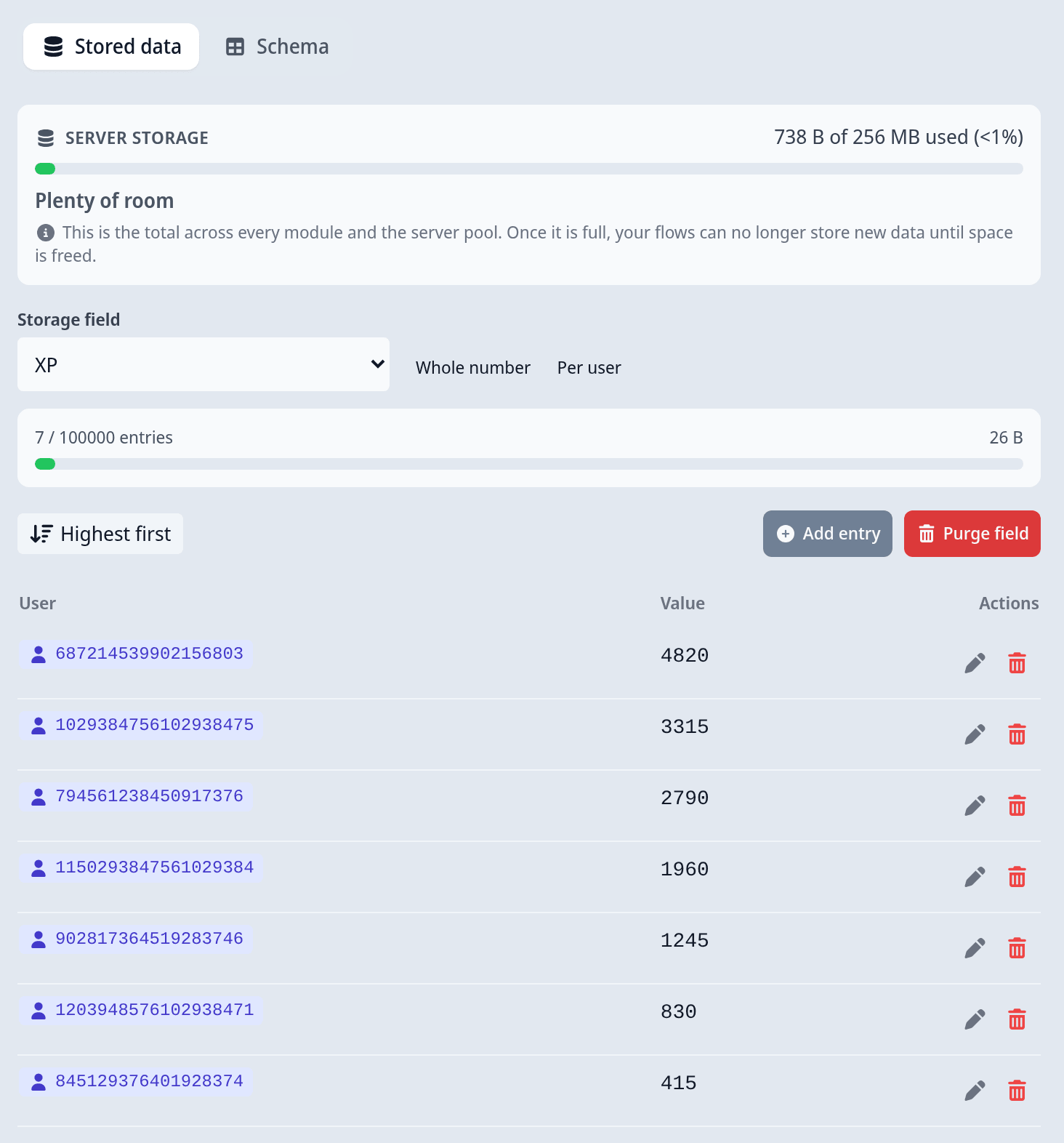
- Check the data. Send a few messages, then open the Stored data view and pick "XP". You'll see one row per member with their total. Sort with Highest first to see your top members.
To fix a member's XP by hand, click the pencil on their row and enter the new number.
Encrypted fields
You can turn on Encrypt this field's values at rest for a field that holds sensitive data. Flows keep reading and writing the field normally, but the values are encrypted in the database.
Encryption has two catches:
- It can't be switched off. Once you save, the field stays encrypted. Deleting the field doesn't undo it either.
- Encrypted values can't be ranked or summed. Leaderboards, top lists and ranks can no longer read across the field. The editor tells you which flows would stop working before you confirm.
You can only turn encryption on while a field is nearly empty. Decide early, ideally when you create the field. If a field already holds too much, saving is refused with "already holds too much data to be encrypted". To move the data into an encrypted field:
- Declare a new field with the same type and scope, and turn on encryption for it.
- Build a flow that reads each value of the old field (for example with List storage keys and a loop) and stores it in the new field.
- Change every flow that uses the old field to use the new one.
- Purge and delete the old field.
If you see "the bot has no encryption key configured, so the values are NOT encrypted" after saving, the field is saved but not encrypted. That's a hosting problem you can't fix in the dashboard, so contact us.
View and edit stored data
Open the storage page from the custom commands overview under Data & history, then Server storage. For a module, open the module and go to the Storage tab. For an app you installed from the marketplace, open the app, go to Advanced, click Show developer tools and then Stored data.
Switch to the Stored data view and pick a field under Storage field. You'll see:
- The entries, with the user or key in the first column and the value next to it. A Whole server field has just one value.
- How full the field is, shown as the number of entries.
- The sort order. Choose Highest first or Lowest first.
From here you can:
- Add an entry. Click Add entry, enter the User ID or Key (depending on the scope) and the Value, then save.
- Edit a value. Click the pencil on a row. Some values, like a stored message, can only be written by a flow. You can't edit those here, but you can still delete them.
- Delete an entry. Click the trash icon and confirm with Delete.
- Clear a whole field. Click Purge field, type the field's name to confirm and click Purge all data. This permanently deletes every entry in that field.
Changes in the dashboard take effect right away. Your flows see them on their next run.
A few things about the table:
- Sorting works by value. For fields that don't hold numbers, the page sorts by the raw stored value and says so.
- Large values. If a field holds large values, a page can end before it's full, with "This page stopped at a size limit". The other entries are still stored. Use the next page to keep reading.
- Lists, lookup tables and shapes are edited as JSON in a text box.
When an edit is refused
| Message | Cause | Fix |
|---|---|---|
| "This value is not valid for the field type." | The value doesn't fit the field, like text in a number field. | Enter a value of the field's type. |
| "Short test IDs cannot be stored from the dashboard." | A user, channel or role field needs a full Discord ID. | Copy the real ID from Discord. See Discord IDs. |
| "Put long numbers such as Discord IDs in quotes" | In JSON, long numbers lose their last digits. | Write IDs as text in quotes, like "123456789012345678". |
| "This value is too large to store" | The value is bigger than a single entry may be. | Store less in one entry, or split it across keys. |
| "This field has reached its entry limit." | The field is full. | Delete entries you no longer need. |
| "This storage field is not in the saved storage schema" | The field was removed since you opened the page. | Reload the page. |
| "Your bot is still loading its flows" | Your bot just started. | Wait a moment and try again. If it keeps happening, reload your bot. |
| "This field was just set to be encrypted" | Your bot starts encrypting when it reloads its flows. | Wait a moment and try again. |
| "This encrypted value cannot be decrypted" | The value was encrypted with a key your bot no longer has. | You can only delete it. |
Deleted entries and purged fields are gone for good. If you only want to try something, test on a field you don't need.
How much you can store
The Server storage card shows how much of your server's storage is used. This is the total across every module and the server pool. It also shows Where the space is going, so you can find the module that uses the most.
The card shows one of these states:
| State | What to do |
|---|---|
| Plenty of room | Nothing. |
| Getting full / Nearly full | Look at Where the space is going and clean up the biggest one. |
| Full: new data is no longer being stored | Free up space now. Flows are already failing to store data. |
| "Usage is being recounted after a purge" | Wait a moment. The number comes back on its own. |
| "Usage could not be measured: the bot is not running" | Start your bot. |
Once the storage is full, your flows can no longer store new data until space is freed. Those steps fail with a storage error in the run history. Delete entries you no longer need, or purge a field you no longer use. Higher plans include more storage, see Plans, limits & safety.
Change or delete a field
Fields are easy to add and harder to change, because flows and stored data depend on them.
- Changing the type of a field that already holds data is refused. Clear its data first, then change the type.
- Changing the type or scope of a field that flows use makes those flows invalid. The editor lists the affected flows before you confirm. They stop running until you correct every step by hand.
- Deleting a field breaks every flow that uses it. The data stored under it isn't cleaned up with the declaration, so purge the field first if you want the data gone.
- The ID never changes. Renaming a field only changes its name. Flows keep working.
To change the type of a field that holds data:
- Switch the flows that use it to Draft, so nothing writes to the field meanwhile.
- On the Stored data view, pick the field and click Purge field. Type its name and click Purge all data.
- On the Schema view, change the Type and save. If flows use the field, confirm with Change it anyway.
- Open each listed flow, fix the steps the Issues tab marks, and switch it back to Active.
Changing the type needs your bot to be running, because your bot checks whether the field holds data. While it's offline, saving is refused with "The bot must be running to change a field's type."
Instead of deleting a field, you can also move it into a shape with Move into a shape. The field keeps its ID, but flows that read or write it directly need updating.
What happens to stored data
| When you... | Stored data |
|---|---|
| Update an app from the marketplace | Is kept. The new version uses the same storage. |
| Duplicate a module | Isn't copied. The copy gets the same fields, but starts empty. |
| Delete a module or uninstall an app | Is deleted for good a while after the module is removed. You can't bring it back from the dashboard. |
| Use the emergency stop | Is kept. Nothing runs, but nothing is deleted. |
| Switch back to Custom Commands V2 | Is kept on your bot. Your flows stop running, so nothing reads or writes it until you turn V3 on again. |
| Run a test | Isn't changed. Test runs read your real data but never write to it. See test runs. |
Who can see stored data
Anyone who can edit custom commands can browse and change stored data: the server owner, co-owners and trusted admins with the Custom-Bot: Bot-Administrator or Custom-Bot: Change and Reload Configuration / Custom Command permission.
Stored data can include information about your members, like their user IDs and anything your flows record about them. If you store member data, be open with your members about it and only keep what you need.