Flows & the editor
Custom Commands V3 is in active beta, and we're changing a lot of things as we go. We'll be reworking this documentation once the current beta cycle wraps up, so some details on this page may be outdated in the meantime.
A flow is one automation: a trigger that decides when it runs, and the steps your bot takes, top to bottom. You build it in the flow editor, which opens when you create a flow or click a flow card on the overview.
A flow either sits on its own (in the Uncategorized section or in one of your folders) or inside a module. Flows inside a module can use that module's settings and storage.
The editor at a glance
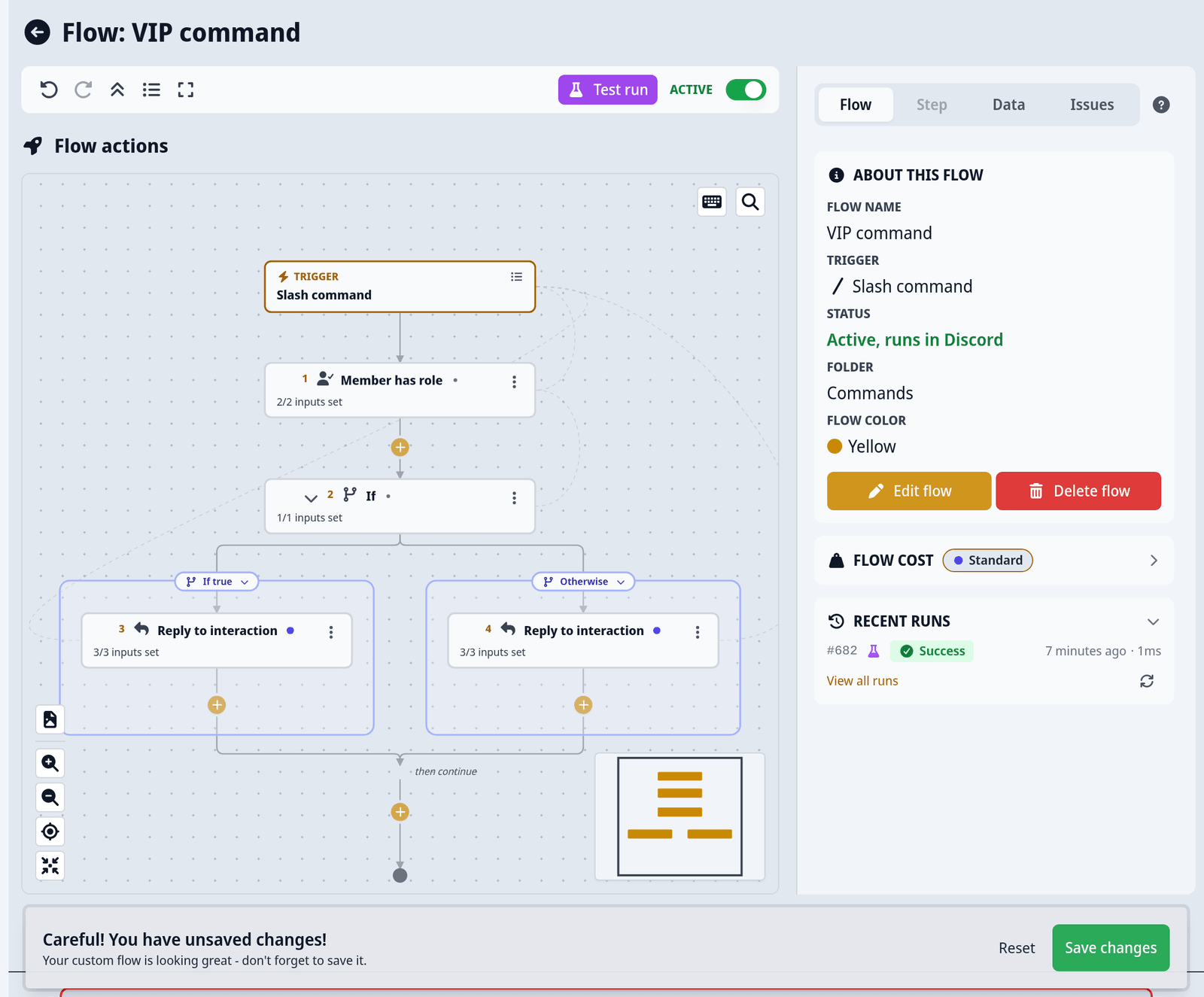
The editor has four parts:
- The toolbar at the top: Undo and Redo, a button to switch between the Diagram and the Step list, fullscreen, Test run and the Draft / Active toggle.
- The diagram shows your flow as boxes, with the trigger at the top and "Flow ends" at the bottom. In big flows, Fit whole diagram and Find a step (or
/) help you get around. Export as image downloads a picture of the flow. - The panel next to the diagram has four tabs. Flow shows the flow's details, its status and its Recent runs. Step shows the inputs of the step you selected. Data lists the values you can use. Issues lists everything the editor found wrong.
- The save bar appears at the bottom as soon as you change something, with Save changes and Reset.
Prefer a plain list? Click Step list. It shows the same steps as cards, works well with the keyboard, and your choice is remembered.
Pick a trigger
A blank flow starts without a trigger. Click Select trigger, pick a category and then the trigger. Its settings open under Trigger settings. Change trigger swaps it later, but steps that used values from the old trigger may need to be set again. See Triggers for what each kind does.
Add steps
In the diagram, click a + between two boxes (Add a step here). In the step list, use Insert a step here. Both open the action picker. Search by name, or pick a category on the left.
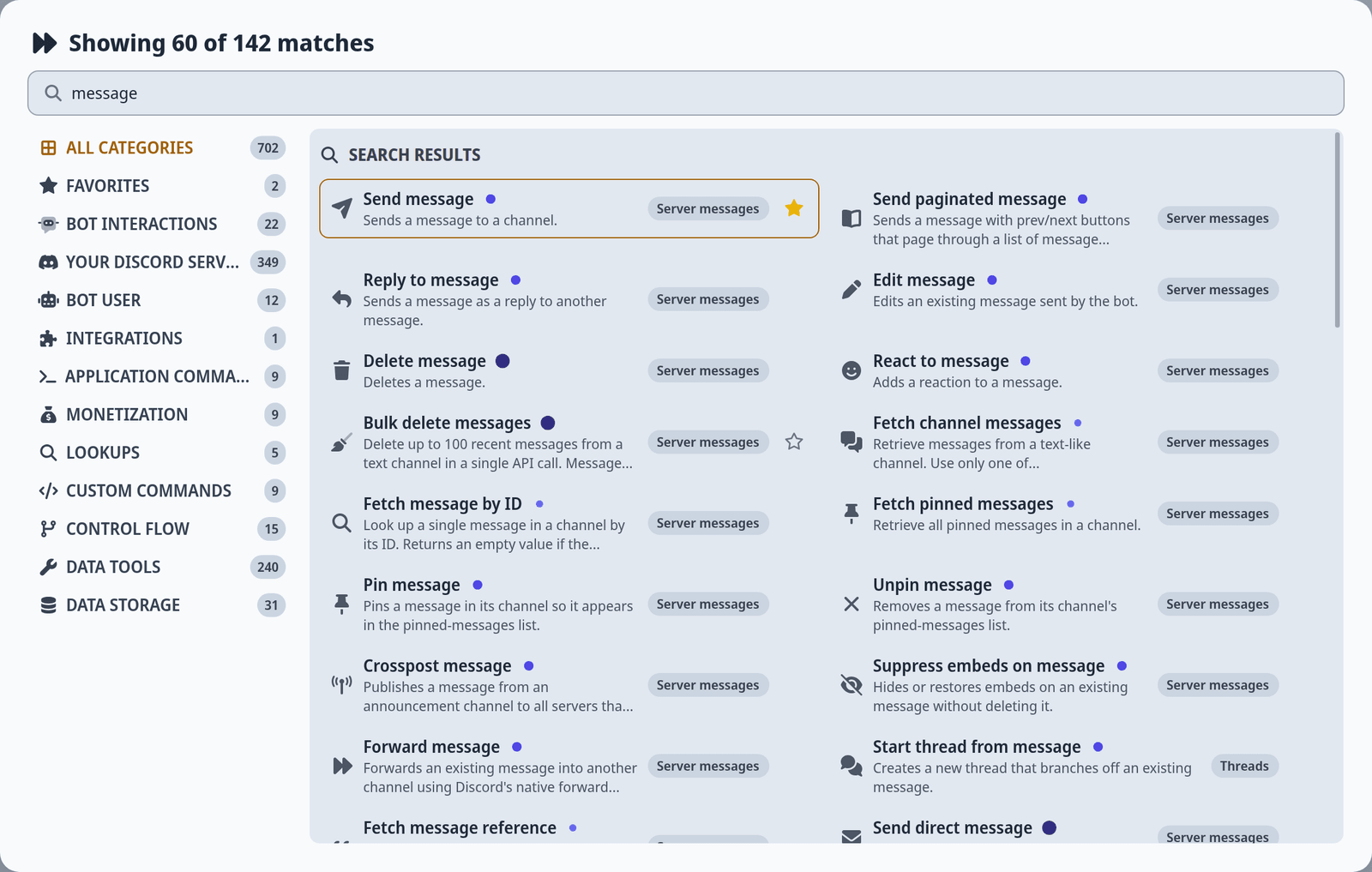
Search by name or description, or pick a category on the left. Recently used, Favorites and Suggested help you find common actions faster, Clipboard holds steps you copied, and Storage offers ready-made steps for your storage fields.
Every action is listed in the reference, sorted by category. For example: Server messages, Members, Roles, Control flow, Data tools and Data storage.
Fill a step's inputs
Click a step to see its inputs in the Step tab. Each input gets its value in one of two ways:
- A fixed value that is the same on every run, like a channel you pick or a text you type. These show the badge Fixed value.
- A value from the flow, like the member who ran the command or the message an earlier step sent. Click Use value and pick it in the Data tab.
Inputs marked may be empty are optional. All other inputs must be set before the flow can be turned on. How values work in detail, including text with values in it, is on Values, variables & messages.
Two input warnings come up often:
- Connection lost means the value this input used is gone, for example because you deleted the step that made it or changed the trigger. Pick a new value or remove it.
- Wrong type means the value doesn't fit, like a channel in an input that needs a role. The Data tab often offers a conversion step that fixes it.
Example: a VIP-only command
This flow answers /vip differently depending on whether the member has a VIP role. It shows how one step's result feeds into a later step, and how a branch works.
- Create a blank flow and pick the Slash command trigger. Set Command name to
vipand give it a Description. - Add the step Member has role. Set Member with Use value and pick Command user, the member who ran the command. Set Role to your VIP role as a fixed value.
- The editor warns that Member may be empty, because a command used outside a server has no member. This command is off in DMs (Allow in DMs is off by default), so pick Ignore - an empty value is fine here.
- Below it, add the step If. Set its Condition with Use value and pick Has role from step 1. This is the wiring: the result of one step becomes the input of another.
- The If step now has two branches, If true and Otherwise. In If true, add Reply to interaction and write a welcome message as its Content.
- In Otherwise, add another Reply to interaction with "This command is for VIPs only." and turn on Ephemeral, so only that member sees it.
- Set Interaction on both reply steps to the trigger's Interaction, then save and turn the flow on.
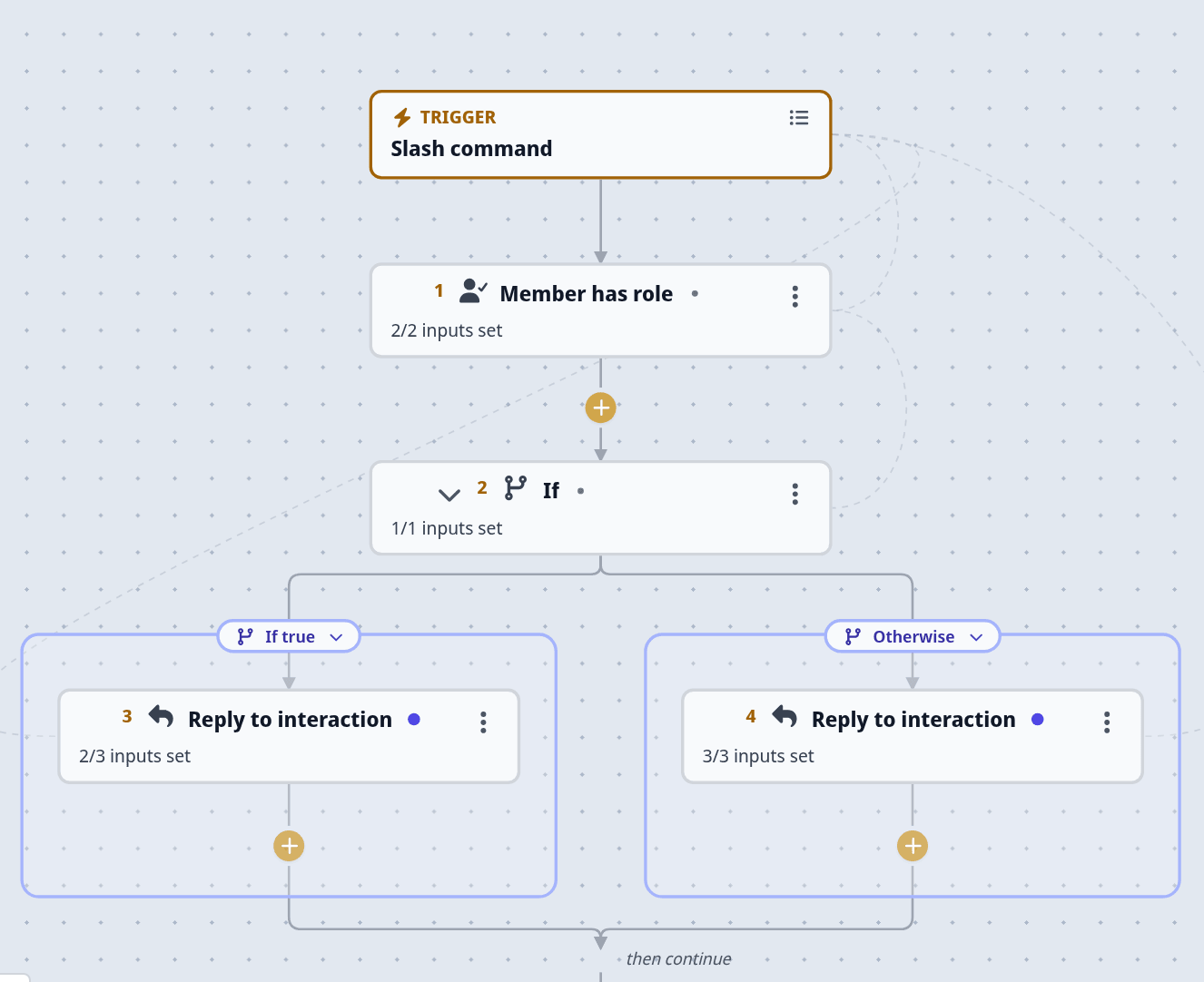
Both branches meet again at "then continue", so a step you add below the If runs in either case.
Example: a DM with a fallback
DMs fail when a member doesn't accept messages from server members. Without precautions, the whole run fails at that step. Try catches it:
- Add the step Try. It has two branches, Try these steps and If a step fails.
- Put Send DM to member into Try these steps.
- Put a Reply to interaction (or a Send message to a staff channel) into If a step fails, for example "I couldn't DM you. Please open your DMs."
- Inside If a step fails, the values Error code and Error message tell you what went wrong. You can insert them into the message.
The /warn command template uses exactly this pattern.
What happens when a step fails
When a step fails while the flow runs, for example because your bot is missing a permission or a channel was deleted, the flow stops right there. Steps after it don't run, and steps before it are not undone. The run shows up as Failed in the run history, with the action that failed and a reason like "The bot is missing a permission it needed for this step." See Run history & debugging.
To keep going after a step that may fail, wrap it in Try. Steps inside Try these steps that fail send the run into If a step fails instead, and the flow continues below the Try afterwards.
Branches, loops and waits
These steps from the Control flow category shape how your flow runs:
| Step | What it does |
|---|---|
| If | Runs If true when the condition is true, otherwise the Otherwise branch (which is optional). |
| If it has a value | Runs one branch when a value is set and another when it's empty. |
| Switch | Runs the branch whose value matches. Add a default case for everything else. |
| Switch on kind | Runs a different branch for each kind of value, for values that can be one of several kinds. |
| Branch on subcommand | Runs one branch per subcommand of your slash command. |
| Random branch | Picks a branch at random, using the weights you set in percent. |
| Try | Runs its steps, and if one fails, runs If a step fails instead of failing the whole flow. |
| For each item | Runs its steps once for every item in a list. |
| For each lookup table entry | Runs its steps once for every entry in a lookup table. |
| Repeat | Runs its steps a fixed number of times. |
| Wait | Pauses the flow for a while. |
| Stop flow | Ends the flow right there. Steps after it can never run and show as Unreachable. |
| Note | A sticky note for you and your team. It does nothing when the flow runs. |
Use Add branch on steps like Switch and Random branch to add more branches. On Random branch, the weights may add up to less than 100%: the rest is the chance that no branch runs. Break loop and Continue loop leave a loop early or skip to its next round. They only work inside a loop.
Steps that wait for someone, like Ask for confirmation, Ask a question with a dropdown or Wait for message, get branches labelled "Later, ..." for each answer and one for when nobody answers in time. Things to know about waiting:
- Waiting steps can't run inside a loop, also not in a flow you call from inside a loop. Move them outside. The run fails with "cannot pause inside a loop" otherwise.
- Wait is for short pauses. To do something much later, book another flow with Schedule flow run. Booked runs survive bot restarts.
- An interaction expires. After a long wait, you can't reply to the command or button that started the flow anymore. Send a normal message instead.
To run another flow from this one, use Call another flow from the Flows category. Its target needs a Manual trigger. See Started by another flow.
Edit, move and organize steps
Every step has a menu (Step options) with Add step after, Add note after, Duplicate, Copy, Paste after and Delete.
- Rename a step to give it a label like "Check VIP role". The label shows on the step.
- Move a step by dragging its card. Dragging works with a mouse or touch in the diagram. To reorder with the keyboard, switch to the Step list. If a move breaks a connection, the editor asks first and lists the inputs it would clear.
- Copy and paste with
Ctrl+CandCtrl+V, also into other flows. If a pasted step used a value the new flow doesn't have, the editor lists the inputs that need a new value. Steps that use module settings or storage fields need new values when you paste them from a module into a loose flow or the other way round. - Select several steps with
CtrlorCmdand a click, or a range withShift, then move, copy or delete them together. - Delete a step from its menu or with
Delete. Steps inside its branches go with it.Ctrl+Zundoes it. - Collapse big steps with Collapse branches, or the whole flow with the toolbar's collapse button, to get an overview.
Click Keyboard shortcuts in the diagram for the full list.
A flow can only hold a certain number of steps, and branches can only be nested so deep. The editor tells you when you reach either limit. Move part of the flow into a second flow with a Manual trigger and run it with Call another flow.
Save and turn a flow on
Click Save changes in the save bar to store your work. A flow is either a Draft or Active:
- Draft flows are saved and checked, but never run. You can save a draft even when it still has issues.
- Active flows run in Discord whenever their trigger fires.
To turn a flow on, flip the toolbar toggle to Active and click Save changes. After saving a draft, you can also click Turn on & save. On the overview, a flow card's menu has Activate flow and Move to draft.
A flow inside a module only runs while its module is enabled too. See Modules & templates.
If someone saved the same flow elsewhere while you were editing, you see Save conflict. Choose Load the newest version to drop your changes, or Overwrite with my version to keep yours.
After a save, your bot loads the new version on its own. If that fails, you see "Saved, but your bot couldn't pick up the changes yet". The version that was running before keeps running. Click Reload bot again, and check that your bot is online.
While the emergency stop is on, the editor shows "Custom commands are emergency-stopped" and no flow runs, active or not.
Read validation errors
The editor checks your flow while you work. The Issues tab sorts what it finds into two groups:
- Stops this flow from turning on - blocking issues, like a required input that isn't set or a value of the wrong type. Fix these before you can activate the flow.
- Worth a look - warnings that don't block anything, like a value that may be empty.
A step with issues shows a badge in the diagram. Click an issue to jump to the step and input it belongs to. Many issues offer a quick fix, like Use a fallback, Only run this and the following steps if set or Pick a new value. Warnings you don't need can be ignored with Ignore, and you find them again under Ignored.
If you try to turn on a flow with blocking issues, you see "This flow can't be activated yet". Your changes are not saved until you fix the issues or switch the flow back to Draft. If you see "Validation is currently unavailable", the check couldn't run. Save as a draft and try again in a few minutes.
Some steps carry a badge of their own:
| Badge | What it means |
|---|---|
| Incomplete | A required input isn't set, or a fixed value is invalid. |
| Broken connection | An input uses a value that no longer exists. |
| Unreachable | A step above it, like Stop flow, always ends the flow first. |
| Deprecated | The action still works but may be removed later. Replace it when you can. |
| Check value | A fixed value doesn't fit its type. It still runs for now, but will be refused later. |
| "Unknown action" | Your bot's version doesn't know this action, for example in a flow from a newer app. It's kept as it is, and you can move or delete it. Restart your bot to update it. |
Common mistakes
| What happens | Why, and how to fix it |
|---|---|
| The flow never runs | It's still a Draft, or its module is Disabled. Check the toolbar toggle and the module. |
| A button says "This interaction failed" in Discord | The flow behind it isn't active, was deleted, or never answered. Check its run history. |
| The run fails with a missing permission | Your bot lacks a Discord permission, or its role is below the role or member it acts on. Move your bot's role up. |
| An input lost its value after you moved or deleted a step | Values are only available below the step that makes them. Move the step back, or pick a new value. |
| The flow runs twice for the same thing | Two active flows, or a module and its duplicate, react to the same trigger. Turn one off. |
Cooldowns
A cooldown limits how often a flow can run. You find the Cooldown card in the trigger settings:
- Turn on Enable cooldown.
- Under Applies per, choose User, Channel or Server.
- Set the Duration.
- For triggers that people use directly, like slash commands and buttons, you can turn on On-cooldown reply and write the message people see while they have to wait.
Runs during a cooldown are skipped and show up as skipped in the run history. Inside a module, Override with a module setting lets admins set the duration and reply on the module's settings page.
Name, color, folder and deleting
Open the Flow tab of the panel and click Edit flow to change the Flow name, the folder (under Category) and the Flow color. The color only changes how the flow looks in the dashboard.
To group flows into folders:
- Click New folder on the overview or on a module's page, enter a Folder name and click Create folder.
- Drag a flow card onto the folder, or use Move to folder in the card's menu. Remove from folder takes it out again.
- To rename or delete a folder, use Rename folder or Delete folder on its section. A folder has to be empty before you can delete it. Its flows are never deleted with it.
Folders in a module only hold that module's flows.
Duplicate as draft in a flow card's menu copies the flow as a draft named "(copy)". Delete flow, in the card's menu or in the Flow tab of the editor, removes it for good. The dialog lists any buttons or dropdowns that start this flow, because they stop working.