Plans, limits & safety
Your flows run on your own bot, with your bot's Discord permissions. That makes them very capable, and it's also why every server runs inside a few limits. They stop a runaway flow before it floods your channels, and they keep the platform fast for everyone.
Most servers never notice these limits. This page explains what they are, what happens when you reach one, and how to stay in control.
Activity budget
Everything your flows do uses real resources: your bot processes each step, and most steps call Discord, which limits how fast bots can make requests. Your server's activity budget is how much your flows can do in a given time.
Usage is tracked over three windows: This hour, Today and This week. The Activity budget card on the custom commands overview shows roughly how much room is left in each, from "Nearly all room left" to "No room left".
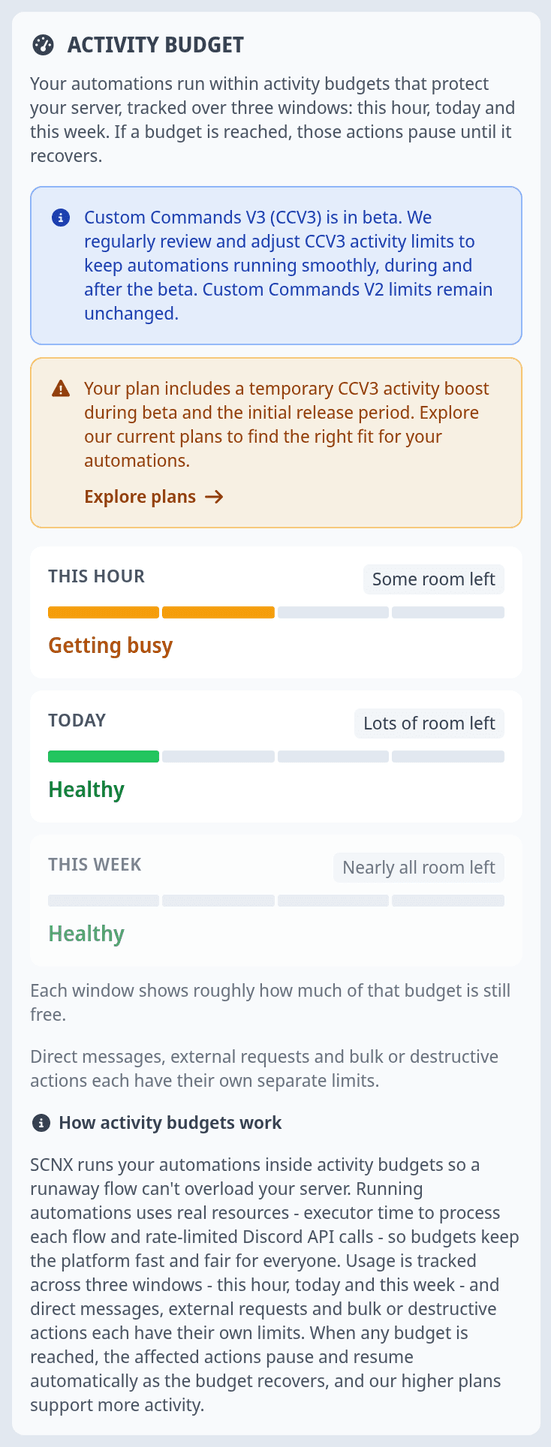
The card has a state at the top:
| State | What it means |
|---|---|
| Healthy | Plenty of room. |
| Getting busy | Your flows are approaching the budget. Nothing is paused yet. |
| At the limit | Some actions are being refused right now. |
| Paused | Your server is well over its budget, and new runs are skipped until it recovers. |
| No reading | The budget couldn't be read, for example because your bot is offline. |
Some kinds of actions have their own, separate limits, because they matter more:
- Direct messages
- External requests
- Bulk and destructive actions, like deleting channels, banning or kicking members
When one of these runs high, the card tells you, for example "Direct messages are running high and may be limited".
See which flows are busiest
Your busiest flows show an activity chip on their card: Light activity, Moderate activity, High activity or Very high activity. It tells you how much of today's activity that flow accounts for, compared with your other flows. Modules show the busiest level their flows reached today.
If you're getting close to your budget, work through your busiest flows:
- On the overview, find the flows marked High activity or Very high activity.
- Check their trigger. A trigger that fires on every message or every reaction is the usual cause. Limit it to the channels where it's needed, or turn on ignoring bots.
- Add an early condition, so the flow stops before doing any work when it doesn't need to act.
- Add a cooldown in the trigger settings: Enable cooldown, then choose whether it Applies per User, Channel or Server, and the Duration. Runs during the cooldown are skipped and cost nothing.
- Look for loops that call Discord for every item, like fetching every member. Store what you need instead of fetching it again on every run.
What happens when the budget is reached
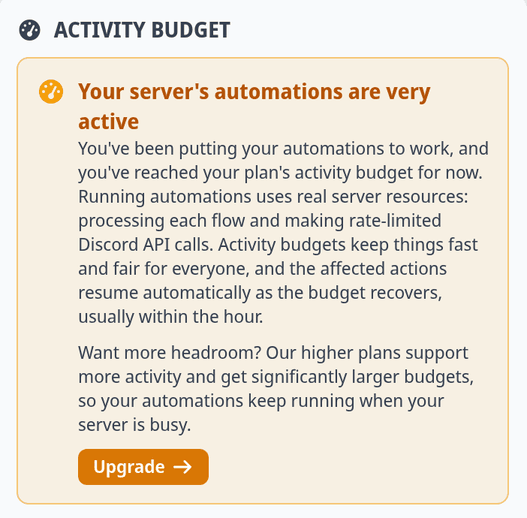
When a budget is reached, the affected actions pause. You'll see "Your server's automations are very active" on the overview.
- Steps that would go over the budget aren't performed. The run fails at that step with
LIMIT_EXCEEDED. If the step is inside a Try block, the On error branch runs instead. - If your server stays well over its budget, new runs are skipped until it recovers. They show as Skipped in the run history.
- Everything resumes on its own as the budget recovers, usually within the hour. You don't need to do anything.
Your flows, settings and stored data aren't affected.
To keep an important step working, or to tell members what's going on, wrap the step in a Try block. In the On error branch, check whether the error code is LIMIT_EXCEEDED and reply with something like "This is busy right now, please try again later." Without it, the person who used the command may get no answer at all.
If SCNX support has raised your server's limits, the card shows "Extra headroom from SCNX support", and when that ends.
Plans and the budget
How much activity your server gets depends on your plan. Higher plans get significantly larger budgets. During the beta and the first release period, some plans also get a temporary boost. The card tells you when your server has one.
We regularly review and adjust these limits during and after the beta. Limits for Custom Commands V2 don't change.
Want more headroom? Click Upgrade on the card, or open the pricing page of your server. See Upgrade your plan.
Limits on a single run
Each run also has limits of its own. They catch mistakes like a loop that never ends:
| Limit | What happens |
|---|---|
| Too many steps in one run | The run ends with Limit exceeded. Loops count every pass, and called flows count too. |
| A run takes too long | The run ends with Limit exceeded. |
| A loop repeats too often | The loop step fails with LIMIT_EXCEEDED. |
| Flows call each other too deep | The Call another flow step fails with LIMIT_EXCEEDED. |
| Too many runs in a short time | Extra runs are Skipped with the reason "server rate limit". |
| Too many waits or scheduled runs at once | The step that would add another one fails with LIMIT_EXCEEDED. |
| Storage is full | Steps that store new data fail. See Data storage. |
There are also limits on how big a flow can be. A flow with too many steps, or with branches nested too deep, can be saved as a draft but can't be activated. The editor tells you what to change, usually to move part of the flow into a second flow and call it.
Safety protections
On top of the limits, SCNX looks out for flows that could harm your server or your members.
-
Some flows can't be activated at all. A flow that DMs your entire member list, deletes every channel or role, bans or kicks every member, floods one person with DMs, or sends your member list to an external service is refused. The editor names the step and explains why.
These are the checks that block activation:
The editor says What to change "This loop sends a DM to the entire membership fetched from the server" DM only the members who need it, like those with a certain role or who opted in. "This loop deletes channels or roles fetched from the entire server" Loop over a list of channels or roles you chose. "This loop bans or kicks the entire membership fetched from the server" Act on specific members, not everyone. "This loop repeatedly DMs the same single recipient" Send one message with everything in it. -
Risky patterns get a warning. For example a destructive action inside a loop, a schedule that runs very often, or a flow that schedules itself again. You can still save these, but check that they can't run away.
-
Destructive actions and DMs are capped while running. Each run, and each server over time, can only delete, ban, kick or DM so much. The limits grow with the size of your server. A run that goes over is stopped with
DESTRUCTIVE_LIMIT_EXCEEDEDorLIMIT_EXCEEDED. -
Autocomplete flows can't change anything. They run on every keystroke, so they can only look things up and answer.
-
Test runs are simulated. A test run never sends, changes or deletes anything on your server.
Automated actions your flows take are your server's responsibility under our Terms of Service, just like an action a moderator takes by hand. Please also read the Custom Commands Usage Guidelines. Apps that break our policies can be turned off by SCNX. You'll see "SCNX disabled this app for policy reasons" on the app.
Emergency stop
If something goes wrong, you can stop every flow and module on your server at once.
- On the custom commands overview, find the Emergency stop card and click Emergency stop.
- Confirm with Stop everything. Your bot restarts and nothing runs anymore.
Your flows and modules keep their settings, and nothing is deleted. While stopped, the overview shows "Custom commands are stopped". Click Turn custom commands back on when you're ready. Each flow and module goes back to exactly how it was, and your bot restarts again.
If the stop doesn't go through, the card offers Stop the bot instead. That stops your whole bot until you start it again.
What your bot needs from Discord
Flows act as your bot, so they can only do what your bot is allowed to do.
- Permissions. Your bot needs the Discord permission for every action your flows take, in the channel where they take it. Sending a message needs Send Messages, giving a role needs Manage Roles, and so on. If a permission is missing, the step fails with
MISSING_PERMISSIONS. See Missing Access / Missing Permissions. - Role order. Your bot can only give, take or edit roles below its own highest role. Move your bot's role above the roles your flows manage.
- Privileged access. Some triggers, like ones that read message content or member events, need privileged access that you switch on for your bot in the Discord Developer Portal. The trigger shows a badge when it needs it. After switching it on, restart your bot. The editor shows "This flow needs a bot restart before its trigger can fire" until you do.
- Apps. Before you install an app, the import page lists the Bot permissions it needs. Once installed, the app's Overview tells you if your bot is missing one.
Who can change custom commands
| What | Who |
|---|---|
| Build and edit flows and modules, view and change stored data and run history | The server owner, co-owners, and trusted admins with Custom-Bot: Bot-Administrator or Custom-Bot: Change and Reload Configuration / Custom Command |
| Emergency stop | The server owner, co-owners, and trusted admins with Custom-Bot: Bot-Administrator or Custom-Bot: Manage Bot |
| Turn V3 on, or switch back to V2 | The server owner and co-owners |
| Publish a module to the marketplace | Members of the publishing organization with the Manage Content permission |
Anyone who can edit custom commands can build a flow that uses all of your bot's permissions. Through a flow, a trusted admin could assign roles or ban members even if their own permissions don't allow it. Only give custom-command access to people you'd trust with your bot.