Custom Commands V3
Custom Commands V3 is in active beta, and we're changing a lot of things as we go. We'll be reworking this documentation once the current beta cycle wraps up, so some details on this page may be outdated in the meantime.
Custom Commands V3 lets you build your own automations for your server's bot. Each automation is a flow: a trigger that decides when it runs, followed by the steps your bot takes. You build flows in a visual editor in the SCNX dashboard, and your bot runs them in Discord.
A flow can be a slash command that replies with a message. It can also be a welcome message for new members, a weekly reminder in your announcements channel, or a whole ticket system made of several flows that share their settings and data.
What you can build
- Slash commands and context menus with options, choices, subcommands and autocomplete.
- Buttons, dropdowns and modals that start a flow when someone uses them.
- Reactions to things on your server, like a member joining, a message being sent, a role changing or a member boosting.
- Scheduled flows that run every hour, every day, every week or on a schedule you pick.
- Systems that remember things, like XP per member, warnings, votes or open tickets, using data storage.
- Reusable modules with their own settings page, so you (or another server) can set channels, roles and messages without touching the flows.
Steps can make decisions, repeat for every item in a list, wait for an answer, call other flows and change almost anything your bot is allowed to change on your server.
How it differs from Custom Commands V2
If you used our older Custom Commands, here is what changes for you:
| Custom Commands V2 | Custom Commands V3 |
|---|---|
| A few triggers: slash command, message, button, modal or no trigger. | Many more triggers, including server events, schedules and flows that start other flows. |
| Actions run in action blocks, all at once or one at random. | Steps run in order, with real conditions, loops, error handling and waits. |
Values come from fixed %parameters%. | Every step can use any value an earlier step or the trigger produced. |
| No memory between runs. | Flows can store and read data, per member, per server or under your own key. |
| Each command stands alone. | Flows can be grouped into modules with their own settings, storage and folders. |
| No history of what happened. | Every run is logged, and you can test a flow without it changing anything on your server. |
Turning on V3 doesn't touch your V2 commands. They keep running and stay editable next to your new flows. If you want to move a command over, see Moving from V2.
What you need
- Your server has its own bot on SCNX. Flows run on your bot, under its name and with its permissions. See Set up your Custom-Bot.
- Your bot is online. The editor loads your channels, roles, storage and run history from your bot, and flows only run while it is running.
- Your bot has the Discord permissions your flows need. A flow that gives roles needs Manage Roles, one that changes nicknames needs Manage Nicknames, and so on. Your bot's role also has to be above the roles and members it acts on.
- Some triggers need privileged intents, like Server Members or Message Content, switched on in the Discord Developer Portal. The editor shows which. See Triggers.
Who can do what
| Task | Who |
|---|---|
| Turn V3 on, or switch back to V2 | The server owner and co-owners |
| Build, edit, turn on and delete flows and modules | Everyone who can edit your bot's configuration, including trusted admins with the Change and Reload Configuration / Custom Command permission |
| Use the commands and buttons your flows create | Your members, limited by the Required permissions you set on each command |
Get access
Custom Commands V3 is in beta and you join it yourself, with no application. Open Custom Commands in your bot's section of the SCNX dashboard. What you see depends on your server:
- "Custom Commands V3 is in beta" means V3 isn't on for your server yet. Click Join the beta to open the opt-in page, or See what V3 can do to read more first.
- "Custom Commands V3 is available for your server" means your server can turn it on. Click Explore V3 to continue.
Only the server owner and co-owners can turn V3 on. A server can also have been unlocked earlier through an early access invite link that a marketplace publisher sent you.
If we have paused joining, you see "Custom Commands V3 isn't available yet" instead. Your existing commands keep working as usual either way.
Turn on Custom Commands V3
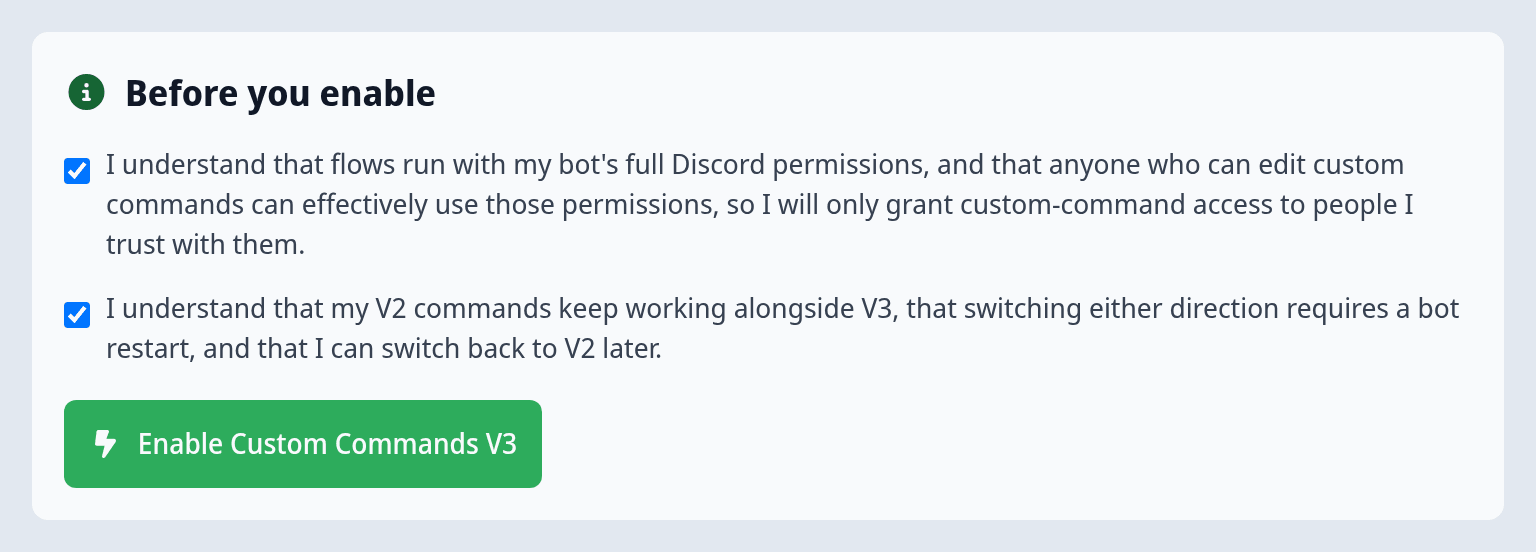
Turning on V3 is a server-wide decision, so only the server owner and co-owners can do it. Anyone else sees "Only the server owner or co-owners can enable this" on that page.
- Click Explore V3. The page explains what V3 is, what you're taking on and what happens to your V2 commands. Please read it.
- Under Before you enable, tick both boxes. The first confirms that flows run with your bot's full Discord permissions. The second confirms that your V2 commands keep working and that switching needs a bot restart.
- Click Enable Custom Commands V3.
- Your bot has to restart before V3 becomes active. Click Restart bot now, or restart it later from your bot dashboard. Your V2 commands keep running throughout.
- Click Go to the V3 overview.
If you see "We couldn't enable Custom Commands V3", wait a moment and try again. Until your bot has restarted, your flows don't run yet, even if you already built some.
What changes for your server once V3 is on:
- The sidebar entry is called Custom Commands V3 and opens the new overview.
- A Marketplace entry appears next to it, where you can install ready-made apps.
- Your V2 commands stay where they were. You reach them through Legacy V2 commands on the V3 overview, and they keep running.
A flow can do anything your bot is allowed to do, like banning members, deleting channels or sending DMs. That includes flows built by other people. Anyone who can edit custom commands on your server, including trusted admins with the Change and Reload Configuration / Custom Command permission, can build such flows. Check who has that permission under Trusted Admins before you turn V3 on.
Switch back to V2
At the bottom of the left column on the V3 overview, the server owner and co-owners find Switch back to V2:
- Click Switch back to V2.
- Confirm with Switch back to V2 in the dialog.
- Your bot restarts.
Your V3 flows stop running, but they aren't deleted. Your V2 commands keep working. You can turn V3 on again later. You go through the same page and checkboxes again when you do.
A tour of the dashboard
Once V3 is on, the sidebar entry reads Custom Commands V3. It opens the overview, headed "Your custom command flows".
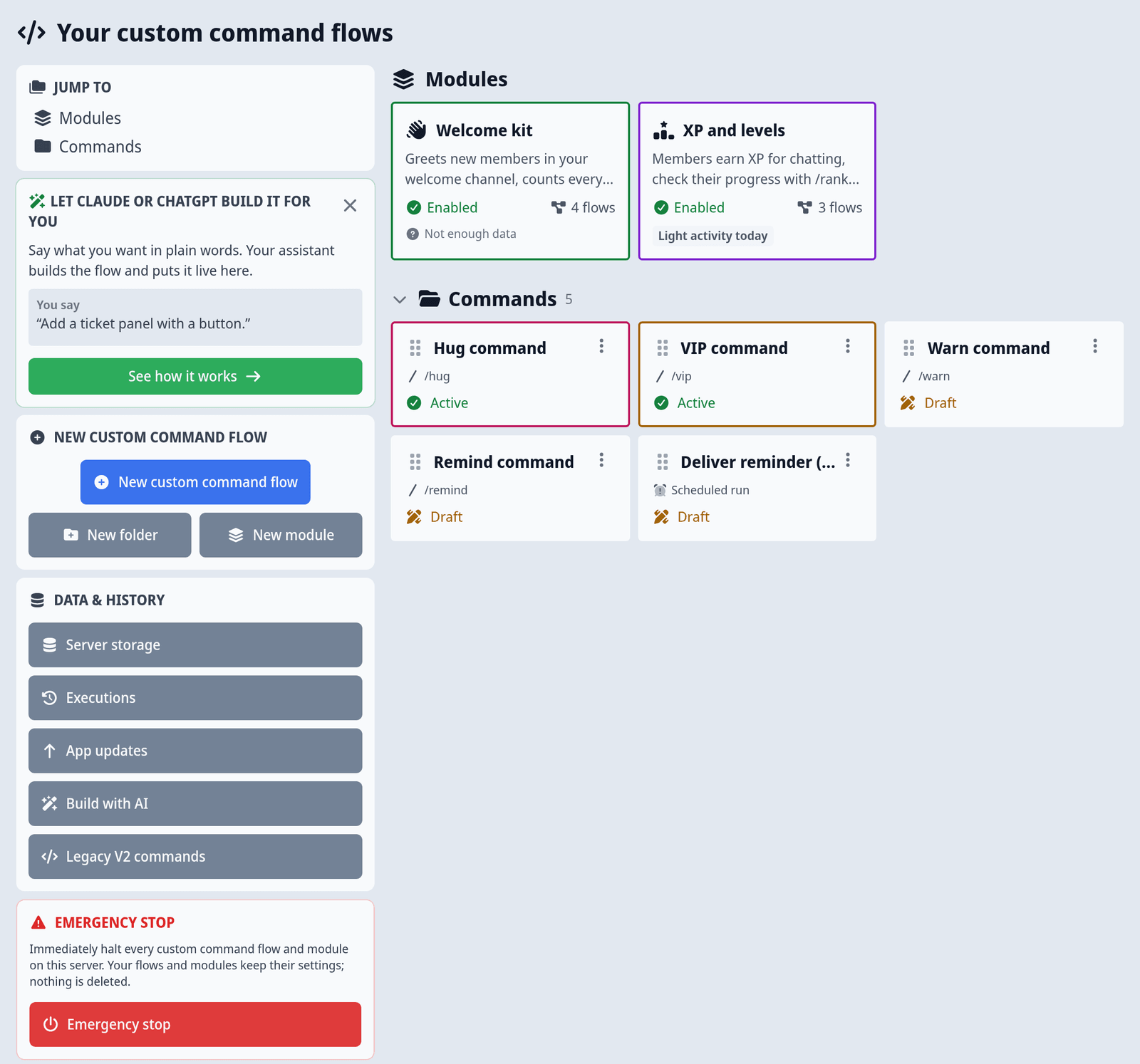
The main area lists what you have built:
| Section | What it holds |
|---|---|
| Apps | Apps you installed from the marketplace. See Sharing & the marketplace. |
| Modules | Modules you built yourself. Each card shows its icon, name, number of flows and whether it is enabled. See Modules & templates. |
| Uncategorized | Flows that don't belong to a module or folder. |
| Your folders | One section per folder you created for your flows. |
Each flow card shows whether the flow is Active or a Draft. Click a card to open it in the editor.
The left column holds the tools:
- Jump to scrolls to any section of the overview.
- New custom command flow creates a flow. Next to it, New folder and New module create a folder or a module.
- Data & history links to Server storage (the data your flows stored, see Data storage), Executions (every run of your flows, see Run history & debugging), App updates for installed apps, Build with AI (see MCP Connector) and Legacy V2 commands.
- Emergency stop halts every flow and module on your server at once. Click it and confirm with Stop everything. Your bot restarts, and a red banner "Custom commands are stopped" appears. Nothing is deleted. To undo it, click Turn custom commands back on in the banner. Every flow and module comes back exactly as it was. If the stop doesn't go through, the card offers Stop the bot instead.
- Activity budget shows how much room your automations have left right now.
Read more about the emergency stop and activity budgets in Plans, limits & safety.
We don't offer support for building or debugging custom commands yet. That includes flows from an app you installed: for those, ask the app's developer. Feedback, bug reports and questions belong in the beta channels on our Discord. For a bug, bring the steps to trigger it, what you expected, what happened instead and a link to the flow.
Next steps
- Build your first flow - a short tutorial from template to a working flow in Discord.
- Flows & the editor - steps, branches, loops, saving and turning flows on.
- Triggers - every way a flow can start.
- Values, variables & messages - pass values between steps and into your messages.
- Modules & templates - group flows and give them a settings page.
- Data storage - remember values between runs.
- Run history & debugging - see what your flows did and why one failed.